
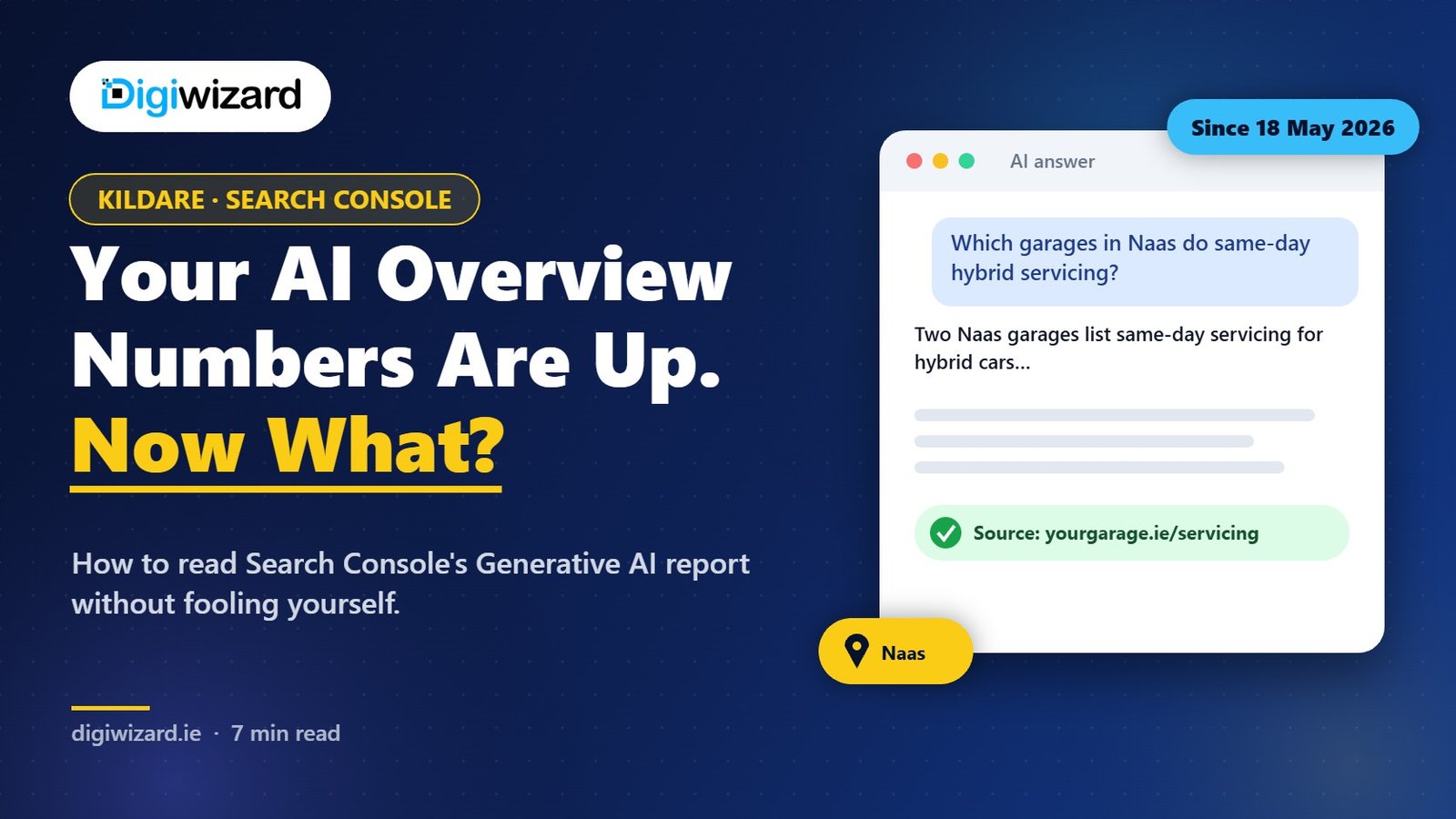
Search Console’s Generative AI report shows how often pages from your site appeared inside Google’s AI Overviews and AI Mode, broken down by page, country, device and date. It doesn’t show the questions people asked, and it doesn’t separate AI Overviews from AI Mode. For a Kildare business, the most useful thing it tells you is which pages Google is already willing to use in AI answers, so you know where to focus. If you’d like help reading it alongside your normal SEO data, our SEO service includes a monthly review.
A Naas car dealer showed us their report in September. Impressions in AI features were climbing steadily, and the owner assumed the website was doing well in AI search. When we looked at the pages, almost all of the impressions came from one blog post about NCT preparation. None came from the used car or servicing pages, which were the ones that brought in money. The report was useful. It just answered a different question from the one they were asking.
What the report shows
Google announced the Search Generative AI performance reports on 3 June 2026. There are two views: one for Search, covering AI Overviews and AI Mode, and one for generative features in Discover.
| What you get | What you don’t get |
|---|---|
| Impressions in AI Overviews and AI Mode combined | A split between AI Overviews and AI Mode |
| The pages that appeared | The questions or queries that triggered them |
| Country, device and date breakdowns | Clicks from AI answers as a separate figure |
| Data from 18 May 2026 onwards | Anything before that date |
Google has said these impressions were always counted in your normal Performance report. The new report separates them so you can see them on their own.
How to find it
- Open Google Search Console and choose your property.
- Look under Performance for the Generative AI section.
- Pick the Search view, set the date range to the last three months and switch to the Pages tab.
If you don’t see it, check that you’re using a property with enough data. Smaller sites sometimes have too few impressions for much to show.
Five ways to read it properly
1. Sort pages by business value, not impressions
Export the Pages list and add a column for what each page is for: a service, a location, a guide, a product. Then ask which of your money pages are missing. In the Naas example, the servicing page had zero AI impressions while ranking on page one for “car service Naas”. That told us where to work.
2. Compare with the normal Performance report
Put each page’s AI impressions next to its total impressions and clicks. A page with lots of AI impressions but falling clicks might be answering the question so completely in the AI summary that people don’t need to visit. That’s a sign to add something only your page can give, such as live prices, a booking option or local detail.
3. Check the country filter
For an Irish business, impressions from the US or India are rarely worth much. Filter to Ireland, and to the UK if you serve Northern Ireland or British customers, before drawing conclusions.
4. Look at mobile separately
AI Mode is heavily used in the Google app. If mobile AI impressions are high but your mobile pages are slow or awkward, fix that first.
5. Fill the query gap with your own tests
Because the report hides queries, run your own. Write eight to ten questions a Kildare customer might ask, such as “Which garages in Naas do same-day servicing for hybrids?” or “Who installs heat pumps in Newbridge and Kildare town?”, and test them monthly in AI Mode. Note whether you’re named and which page Google cites. That gives you the “why” the report leaves out.
Is ChatGPT recommending your competitors instead of you?
We check how ChatGPT, Gemini, Copilot and Google AI Mode describe your business, then hand you a prioritised fix list you can act on straight away. See how our AI search optimisation (GEO) works, or browse our client case studies.
What to do with what you find
| What you see | What it probably means | What to try |
|---|---|---|
| Guides get AI impressions, service pages don’t | Google sees your service pages as thin or generic | Add specifics: areas, prices, timings, who does the work |
| AI impressions up, clicks down | The summary answers the question without a visit | Offer what a summary can’t: quotes, availability, local proof |
| No AI impressions at all | Pages may not be indexed or eligible for snippets | Check indexing, robots rules and any nosnippet tags |
| Sudden drop on one page | A content or technical change, or a competitor’s new page | Compare dates with your own edits and recheck the live page |
Google’s AI features need a page to be indexed and eligible to show with a snippet. If you’ve used nosnippet or max-snippet settings, they can keep a page out of these features, which some publishers do on purpose. Make sure that’s a choice, not an accident left over from a plugin setting.
The opt-out question
Alongside the report, Search Engine Journal reported that Google is testing a Search Console control to include or exclude a site from its generative AI features. For most local businesses we wouldn’t opt out. Being absent from the answer usually costs more than the clicks you might save. Publishers whose business is the content itself may weigh it differently.
Questions About the Search Console Generative AI Report
Does Search Console show AI Overview clicks?
The Generative AI report focuses on impressions. Clicks from AI features are still counted in your overall Performance totals, but they aren’t shown as their own figure in this report.
Can I see which questions triggered my AI impressions?
No. The report shows pages, not queries. Run your own prompt tests to see the questions you’re appearing for.
Why does my site have no AI impressions?
Check that your key pages are indexed and allowed to show snippets. Then look at whether they answer specific questions. Very general pages are less likely to be used.
Does the report include ChatGPT?
No. It only covers Google’s own AI features. For Microsoft Copilot, use the AI Performance report in Bing Webmaster Tools. For ChatGPT, check referral traffic in your analytics and run manual tests.
Send us your export
Export three months of the Pages view and bring it to a free consultation. We’ll go through it with you and point out which pages need work first. Our Kildare SEO page explains how we work with businesses across Naas, Newbridge and the county.